powershell / ai / automation
Clairic Studio: From an Invoice to Working Code
Design an extraction visually, inspect typed results, and export a working program in PowerShell, Python, TypeScript, Go, or Rust.
An invoice arrives as a paragraph. Your automation needs an invoice number, a vendor, an amount, and a due date.
I built Clairic Studio to work through that gap visually. Paste the text, describe the fields you want, and inspect the typed results. Under the hood, it calls Cloudflare’s Clairic extraction model.
Then comes the part I wanted most: Export code. The extraction you just designed becomes a program you can take into your own workflow—in PowerShell, Python, TypeScript, Go, or Rust.
In the walkthrough, we’ll use an invoice with a calculated total, a due date hidden in the payment terms, and a purchase order that isn’t there. Getting those answers is the first step. Taking the extraction out of the workbench is where it gets useful.
Walkthrough: invoice to automation
Here’s the desktop workbench. The document and field definitions sit on the left; the results sit on the right. You can change an instruction and compare the next result without rebuilding a request by hand.
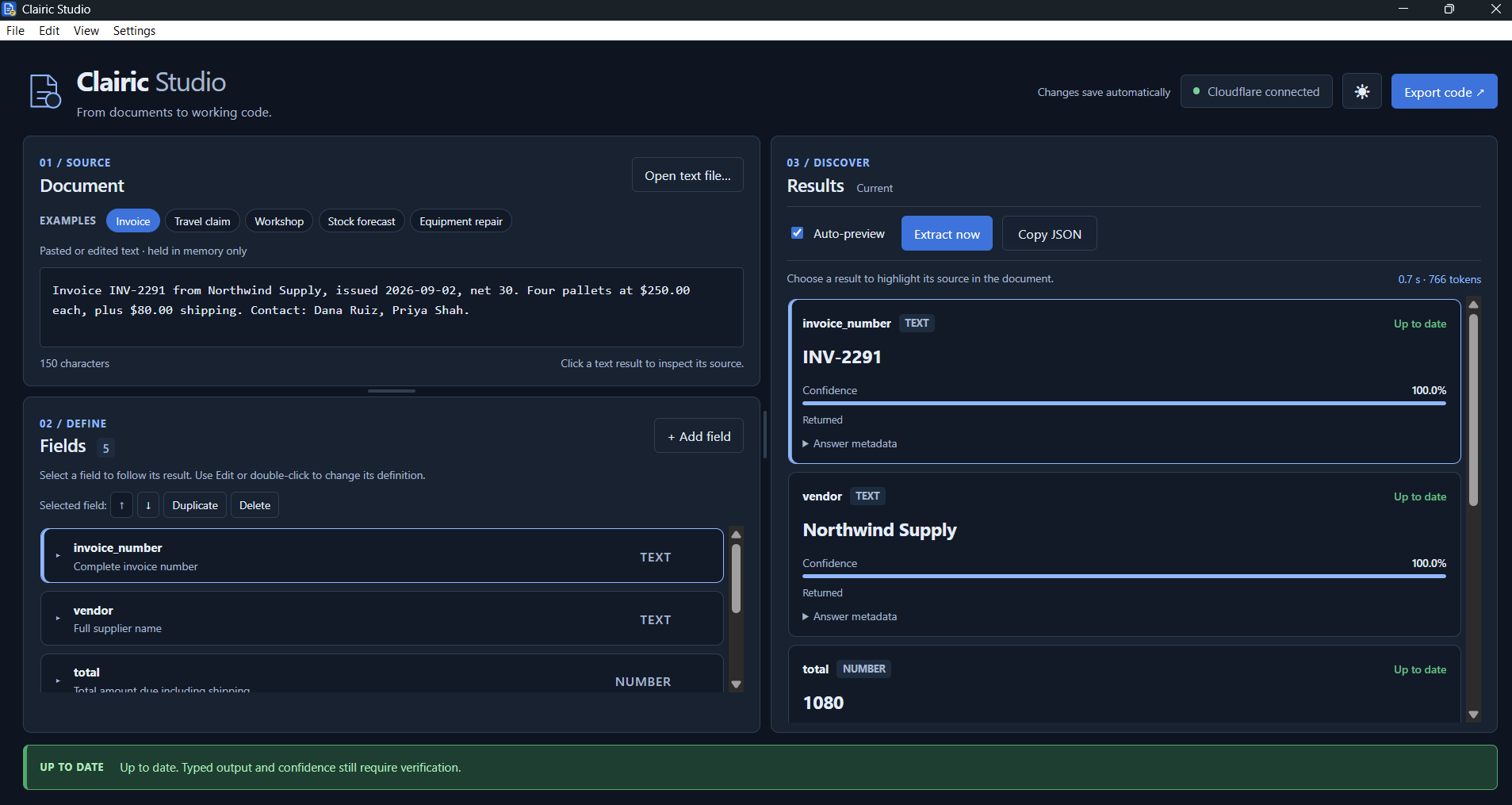
The screenshot shows INV-2291, Northwind Supply, and a total of 1080. The confidence indicators and expandable answer metadata are there to help you inspect what came back.
1. Get the standalone app
Clairic Studio runs as a Windows x64 executable. You don’t need Go, Node.js, or PowerShell installed to run the app. It uses Microsoft Edge WebView2, which is normally present on current Windows installations.
The interface runs on your desktop. Extraction sends the document text and field definitions to Cloudflare, so it requires an internet connection and your own Cloudflare Workers AI access. Designing fields and exporting code also work without a connection.
2. Connect Cloudflare
Open the app and choose Connect Cloudflare if a connection hasn’t already been detected. Enter your Cloudflare account ID and an API token with Workers AI Read permission for that account, then choose Use credentials.
Select Remember if you want Studio to store the connection in the operating system’s credential store. Without it, entered credentials last for the current session.
Studio also detects CLOUDFLARE_ACCOUNT_ID and CLOUDFLARE_AUTH_TOKEN, with CLOUDFLARE_API_TOKEN supported as an alias. If those variables exist only in a PowerShell session, launch the executable from that session so it inherits them. Double-clicking the app won’t inherit variables from a separate PowerShell process.
3. Load the Invoice example
Choose Invoice in the Examples row. It loads this fictional document and matching field definitions:
Invoice INV-2291 from Northwind Supply, issued 2026-09-02, net 30.
Four pallets at $250.00 each, plus $80.00 shipping.
Contact: Dana Ruiz, Priya Shah.
The fields describe the answers you want:
| Field | Type | Instruction |
|---|---|---|
invoice_number |
text | Complete invoice number |
vendor |
text | Full supplier name |
total |
number | Total amount due including shipping; USD, two decimal places |
due_date |
date | Issue date plus the net payment days |
po_number |
text | Purchase order number; null if absent |
Choose Extract now. When connected, Auto-preview also runs after a one-second pause following an edit. You can turn it off if you prefer to run each request yourself.
4. Inspect the answers
These are the expected values for the built-in example; check the actual model response against the document:
| Field | Expected value | What to check |
|---|---|---|
invoice_number |
INV-2291 |
Matches the invoice identifier |
vendor |
Northwind Supply |
Matches the supplier name |
total |
1080 |
Four times 250, plus 80 shipping |
due_date |
2026-10-02 |
September 2 plus 30 days |
po_number |
null |
No purchase order appears in the text |
Click the vendor’s text result to inspect its source highlight. Expand Answer metadata to explore the returned detail. A calculated answer may have no direct source span.
Now add Purchase order: PO-1042. to the document and extract again. Compare the purchase-order result before and after the edit. This is a useful test: the same field should distinguish a missing value from one that is present.
Typed output still needs checking. Confidence is a model signal, not proof that an answer is correct. For a production invoice workflow, extract the raw quantities, prices, and dates, then perform exact arithmetic and business checks in your own code.
5. Export a PowerShell program
Choose Export code, select PowerShell, and keep Standalone HTTP script as the export style.
For the first run, select Embed the current document. Choose Save program and save it as Extract-Document.ps1.
Run the exported program in PowerShell 7.2 or later, from a session with your Cloudflare credentials configured:
./Extract-Document.ps1
The exported script calls Cloudflare directly. Studio doesn’t need to remain open. Credentials remembered by Studio aren’t automatically available to exported programs; those programs read their environment variables.
For a reusable file-based workflow, export again with Read from a file when the program runs selected. Pass it your next text file:
./Extract-Document.ps1 -Path ./invoice.txt
The schema stays in the program; the input document changes. That’s the handoff from an experiment at your desk to a repeatable extraction step.
6. Take the same extraction further
Switch the export language to Python, TypeScript, Go, or Rust to generate a program for that environment. Each export has its own runtime requirements, described in the project documentation. PowerShell also offers a Use PSAIClairic module style when you want to work through that module instead of the standalone HTTP script.
Use Copy JSON when you want just the current extracted values. Use File → Save schema as when you want to save the field definitions for another Studio session.
Then try Travel claim, Workshop, Equipment repair, or Stock forecast. Start with the provided examples, change one detail, and inspect the result. Estimates and forecasts are predictions, so treat them differently from values you can verify directly in the document.
The useful output of the workbench is a field definition you understand, a result you’ve checked, and code you can run again.
Resources: Clairic Studio source and setup details · Watch my demo · Cloudflare’s Clairic model reference